Troubleshooting
Why iMic sometimes can't find your Mac — and how to fix it
July 24, 2026 · 5 min read · By Forthright Tech
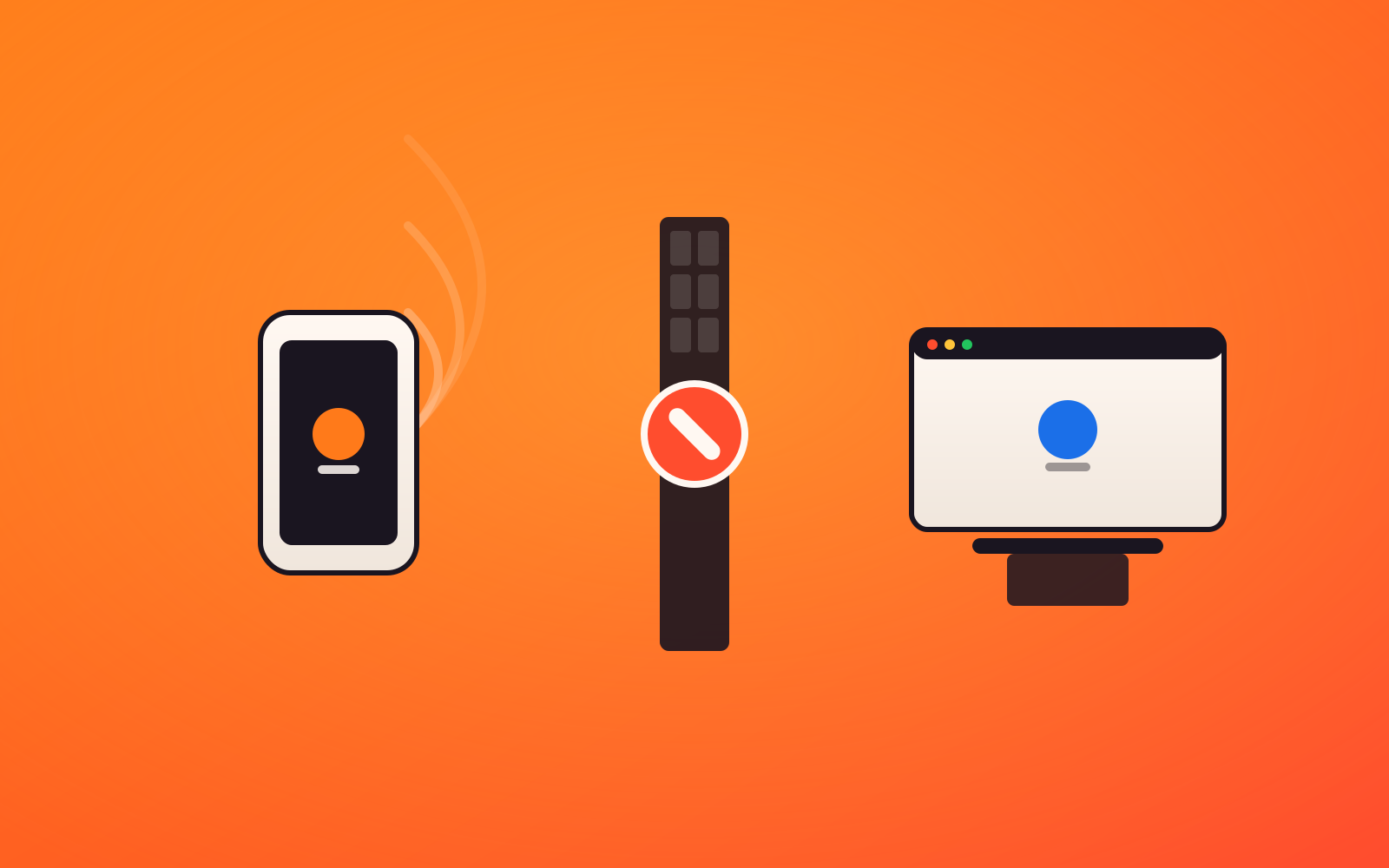
On some hotel, café, airport, and corporate Wi-Fi, your iPhone and Mac can't see each other even though both are online. Here's why that happens, and two reliable workarounds: a USB cable or a Personal Hotspot.
iMic works by making a private, direct connection between your iPhone and your Mac — and keeping it that way. Your voice travels straight from one device to the other over your local network. It never goes through our servers, and there's no cloud relay, ever. That's the whole privacy promise: what you say stays between your two devices.
The one thing that makes that possible is also the one thing that can trip it up: both devices have to be able to reach each other on the same local link. On your own Wi-Fi that's automatic. On some networks you don't control, it isn't — and that's when iMic can't find your Mac.
Here's exactly why, and two ways to get connected anyway.
The normal case: it just works
On your home or office Wi-Fi, there's nothing to think about. Your iPhone and Mac join the same network, discover each other automatically, and connect. Pair once, and from then on they reconnect on their own every time you open the apps.
That's how it should feel, and on a network you control, it's how it does feel.
The failure case: "online," but invisible to each other
Now picture a hotel, café, airport, or corporate Wi-Fi. Your iPhone shows full bars. Your Mac is browsing the web just fine. Both are clearly online — yet iMic on your phone can't find your Mac at all.
What's happening is that these networks are deliberately locked down. To keep strangers on the same public Wi-Fi from seeing each other's devices, they turn on client isolation — and often a firewall on top of it. That's a sensible security setting, but it blocks the two things iMic relies on to connect:
- Local discovery (mDNS/Bonjour) — how your phone finds your Mac by name on the network. The network drops it, so your phone never learns your Mac is there.
- The direct peer-to-peer fallback — even if your phone knew where your Mac was, the firewall blocks devices from talking to each other directly.
Both devices reach the internet, but they're walled off from each other. To be completely clear: this is the network doing its job, not a bug in iMic. The same lockdown blocks AirPlay, AirDrop, printer discovery, and casting — anything that expects two devices on the same Wi-Fi to find each other. iMic can't punch through a firewall it isn't allowed through, because doing so would mean routing your audio around the network — through the cloud — which is exactly what we promise never to do.
So the fix isn't to weaken the privacy model. It's to give your two devices a local link that you control instead of one the venue locks down.
Workaround 1 — Use a USB cable (most reliable)
The single most dependable fix is to connect your iPhone to your Mac with a cable.
A USB connection creates a small private network link between just those two devices — a wire the hotel's firewall has no say over. iMic can use that link directly, so it sidesteps the restrictive Wi-Fi entirely.
- Plug your phone into your Mac with a USB cable.
- If prompted, tap Trust This Computer on your phone.
- Open iMic on both devices — they'll find each other over the wired link.
Because it doesn't depend on the venue's network at all, this works even on the most locked-down corporate or hotel Wi-Fi. If you just need it to work, reach for the cable.
Workaround 2 — Use a Personal Hotspot
No cable handy? Turn your phone into the network instead.
Switch on your phone's Personal Hotspot, then connect your Mac to it. Now both devices are on a small private network that you own — no client isolation, no blocking firewall — so iMic discovers your Mac normally, exactly like it does at home.
- On your phone, turn on Personal Hotspot.
- On your Mac, join that hotspot from the Wi-Fi menu.
- Open iMic on both devices — they'll connect the way they do on your home Wi-Fi.
One thing to know: while your Mac is on the hotspot, its internet runs through your phone's cellular data, so keep an eye on your data plan for anything heavy. For a meeting or a recording, the audio itself stays local between the two devices — only whatever else your Mac does online uses the cellular connection.
What's coming
We're making restrictive networks less of a surprise:
- First-class, one-tap USB mode. Instead of relying on the wired link quietly working, a clear "connect over USB" option so a cable is an obvious, deliberate choice.
- A clearer in-app message. When iMic detects it's on an isolated network, it will tell you plainly — "this Wi-Fi is blocking device discovery" — and point you straight to these workarounds, instead of just spinning while it searches.
What we won't do
We won't add a cloud relay to "solve" this. Routing your audio through our servers would make it connect anywhere — but it would also break the promise the whole product is built on: your voice stays between your iPhone and your Mac, and never touches the cloud. A locked-down café network is a small, occasional inconvenience. Quietly sending your voice through the internet to work around it isn't a trade we're willing to make for you.
So when you hit a network that won't cooperate, grab a cable or flip on your hotspot — and keep the privacy you signed up for.
Ready to try iMic?
Turn your iPhone into your Mac’s microphone and shortcut remote. $5.99/year with a 7-day free trial, or $9.99 for a lifetime license on two Macs.
Get iMic